Which screens, and how?
Up to 10 screenshots from your Instagram Professional Dashboard are enough for your application. Complete screens make a complete media kit; anything we can't read stays blank, never filled with a guess.
Date filter: Last 30 Days.
Go to your own profile on Instagram and tap Professional Dashboard below your bio. On the next screen, choose Last 30 Days from the date filter at the top right. Take every screen below with this filter.
How to take a screenshot: on iPhone, press the side button and volume up together. On Android, it's usually the power button and volume down together. Make sure all the numbers are on screen; if a box is cut off, scroll a little and take it again.
Top to bottom, one by one.
-
Overview: reach and views
Professional Dashboard → Views. The top of the page: total views, accounts reached, and the followers / non-followers split on one screen.
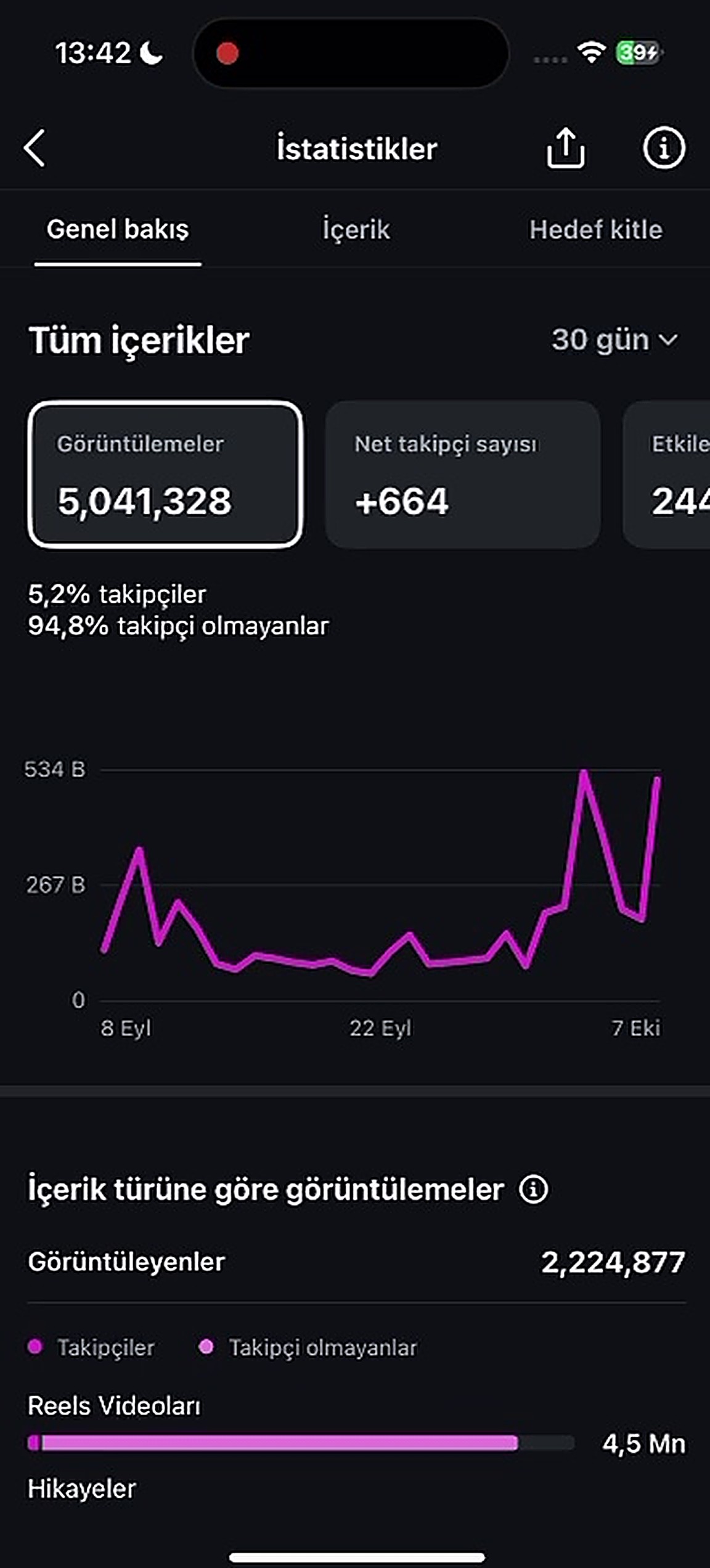 Image 1
 -
Interactions
Scroll down on the same page; the total in the Interactions box (likes, comments, saves, shares) should be readable.
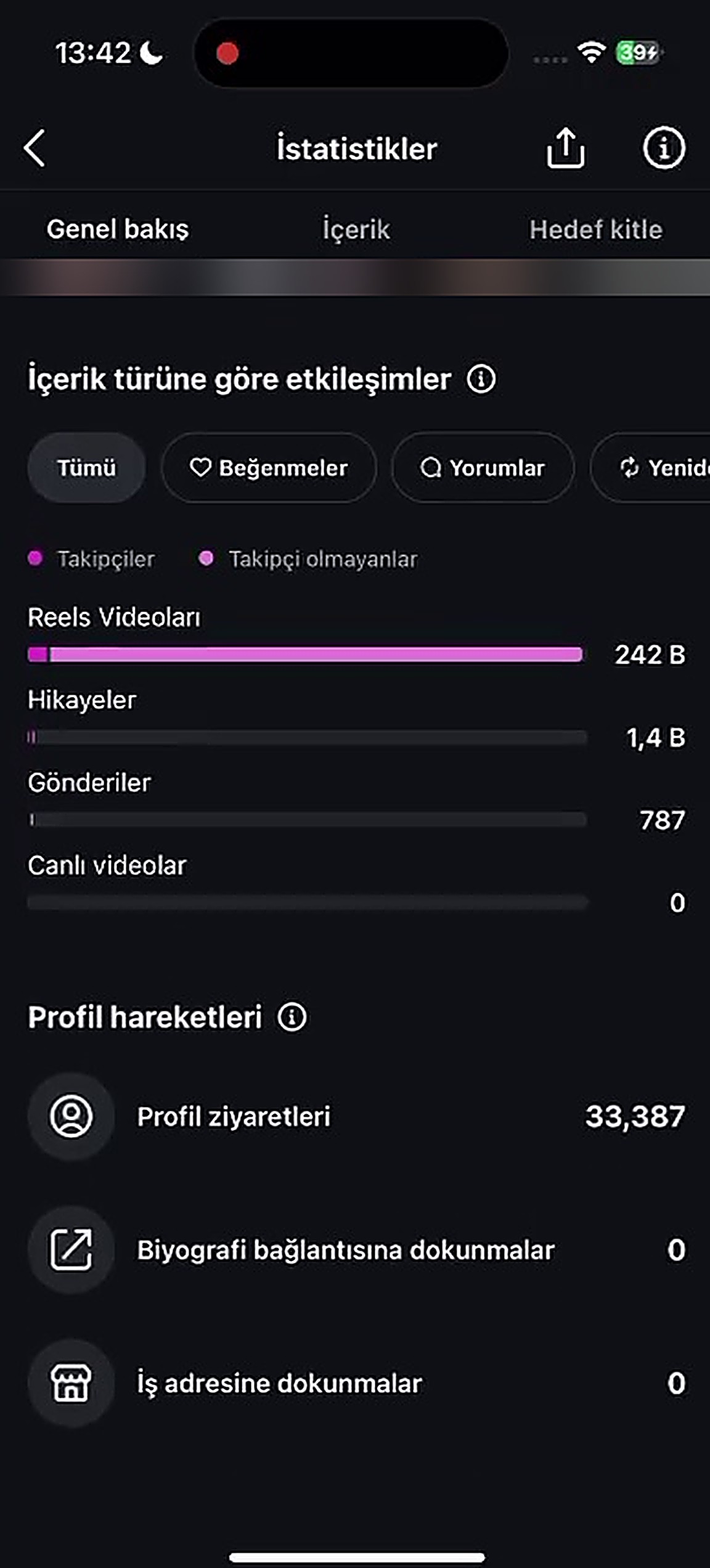 Image 2
 -
By content type
How your views split across reels, posts and stories, plus the top content list (the last 10–15 items are enough).
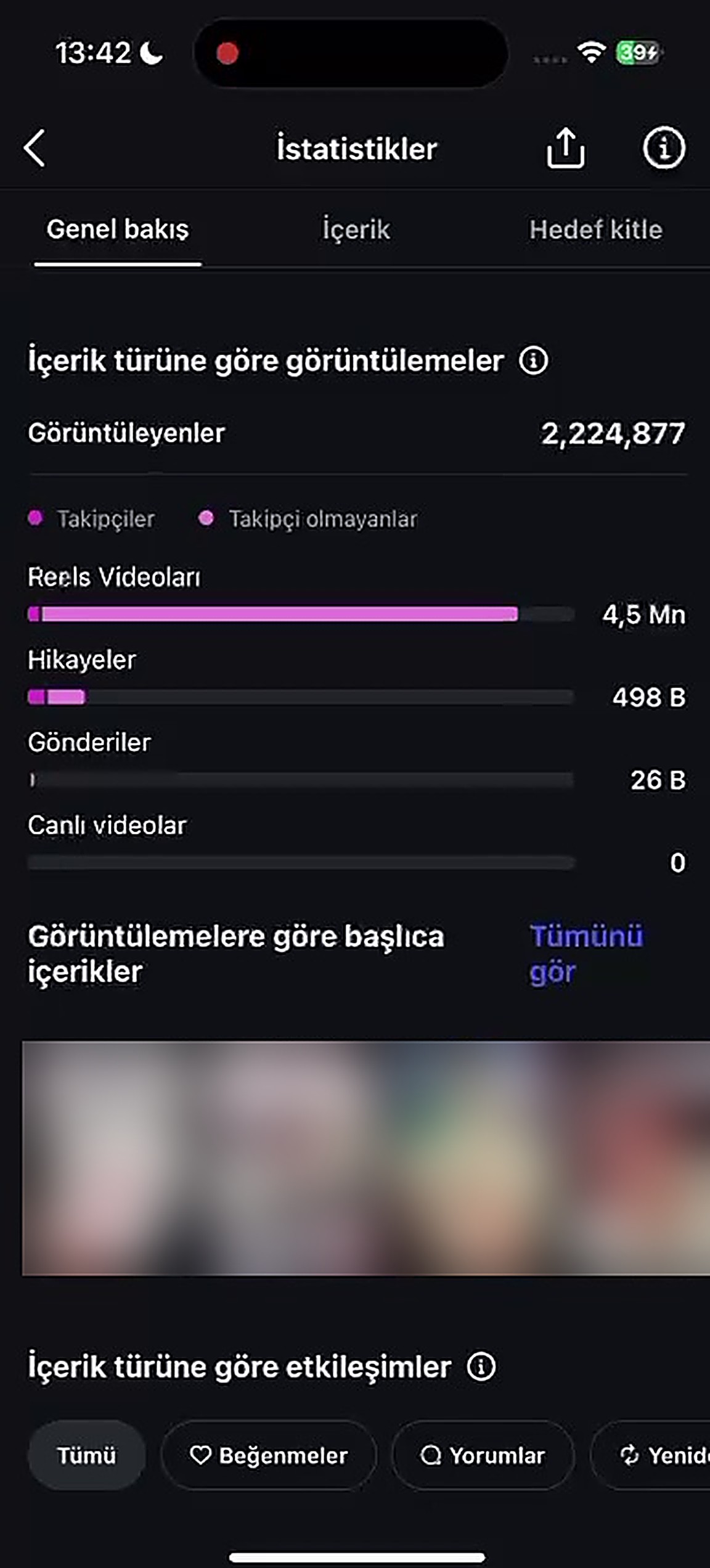 Image 3
 -
Followers
Your total followers and the net follower change over the last 30 days.
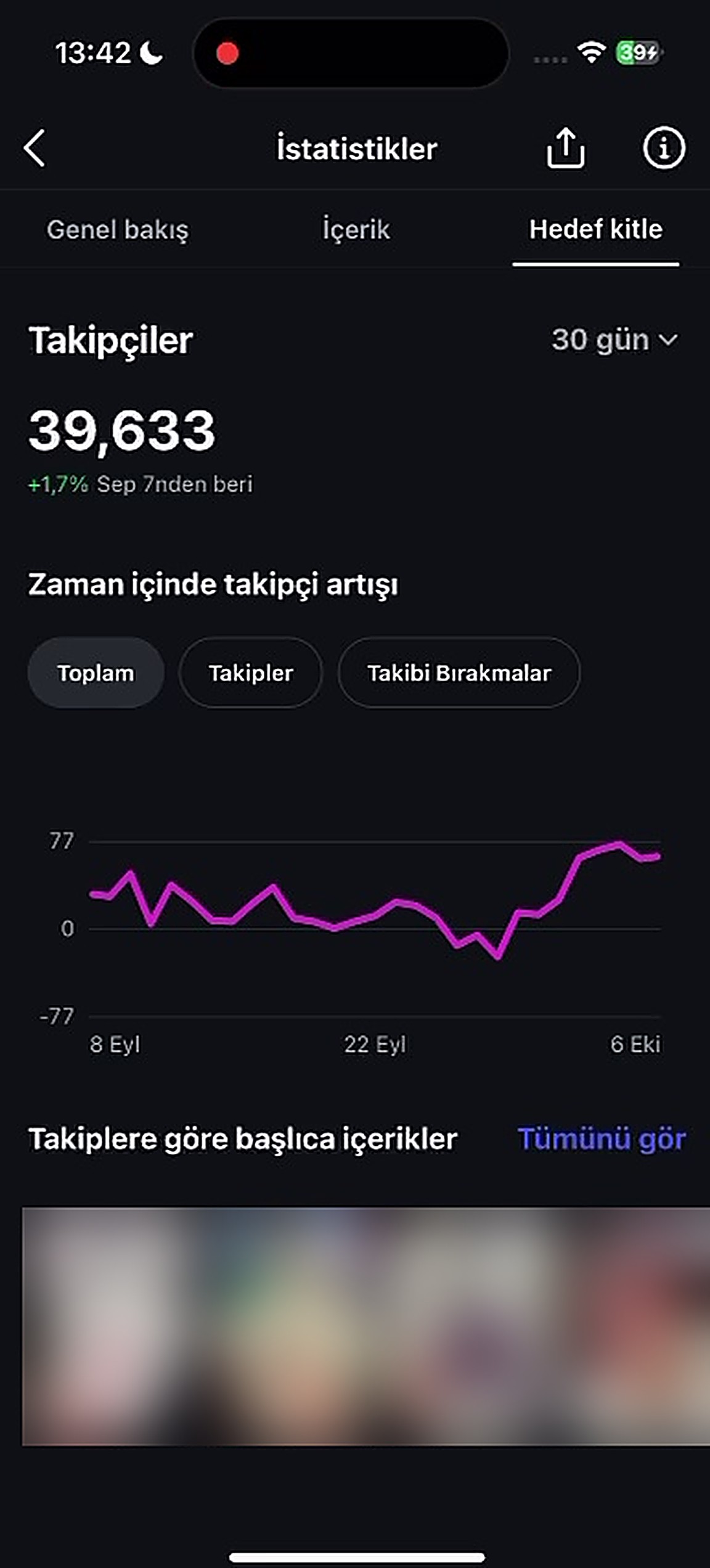 Image 4
 -
Audience: age range
The Audience tab → age range chart, with readable percentages.
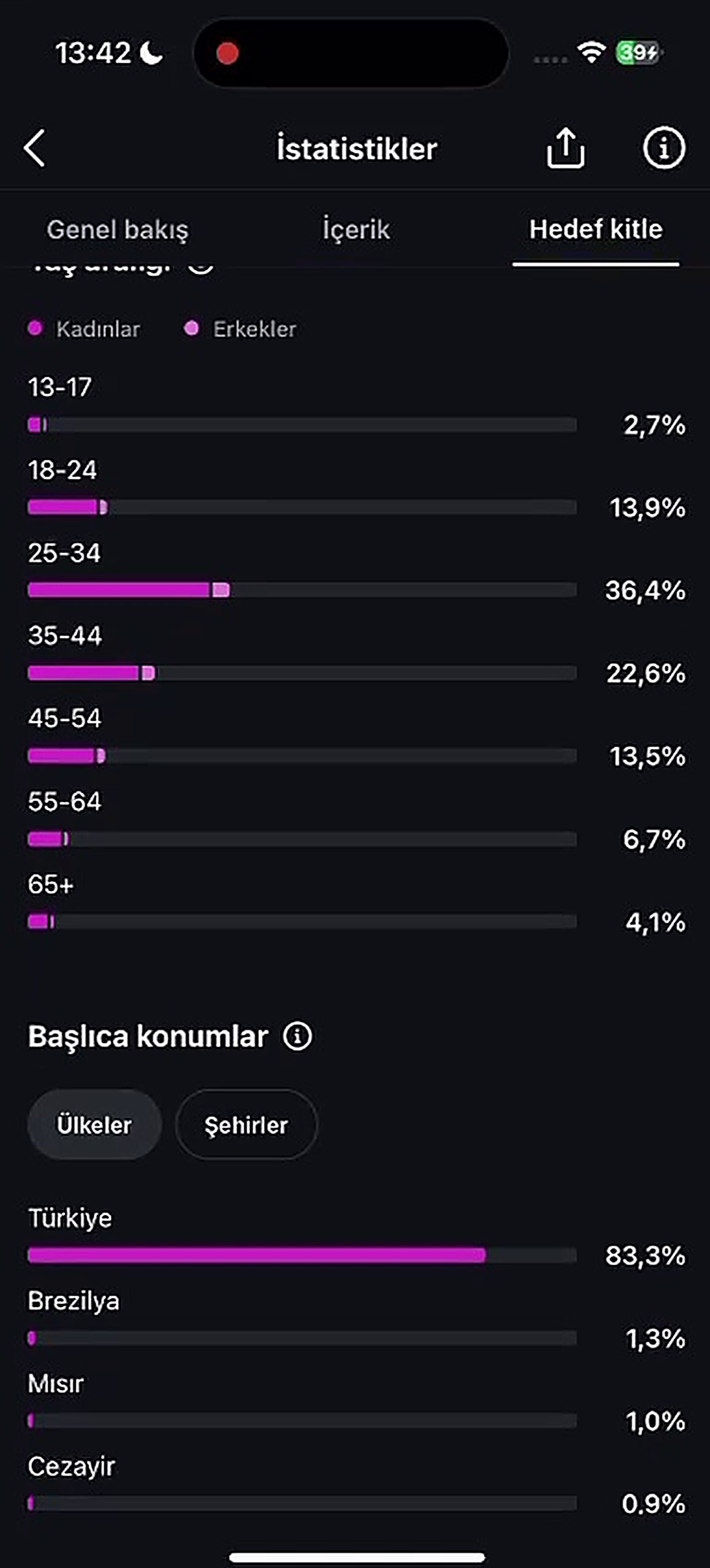 Image 5
 -
Audience: gender
Women / men percentages.
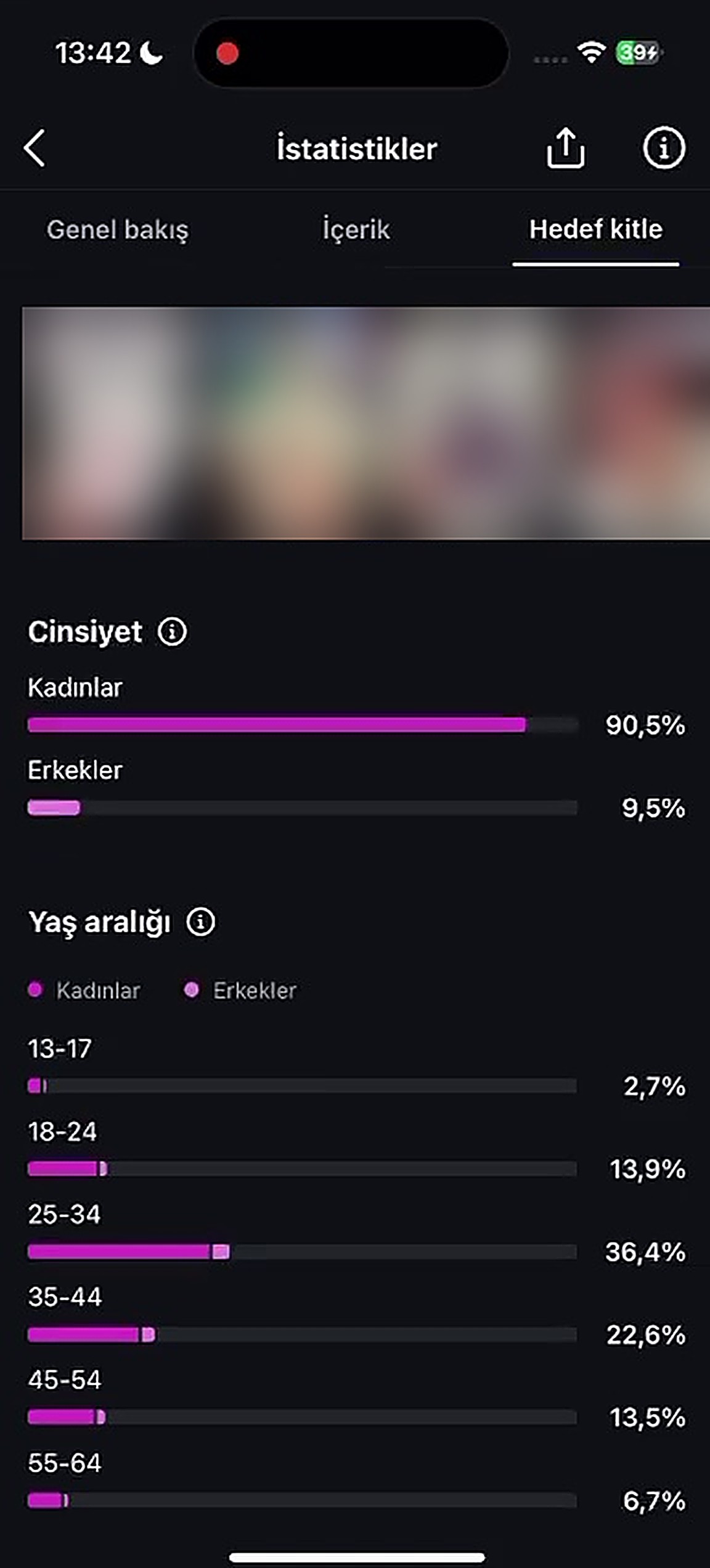 Image 6
 -
Locations: Cities
In the "Locations" section, tap the Cities tab; the top cities and their percentages should show.
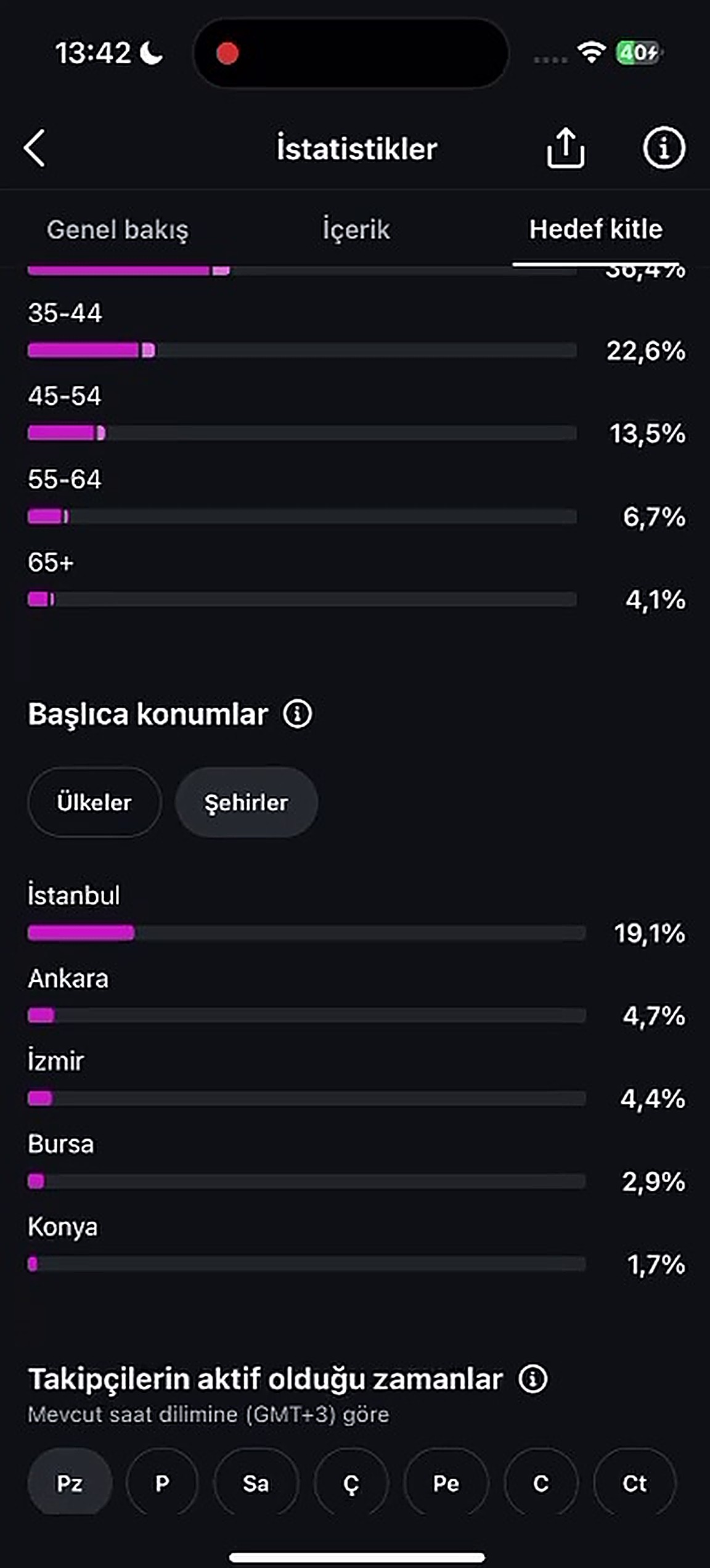 Image 7
 -
Locations: Countries
In the same section, tap the Countries tab.
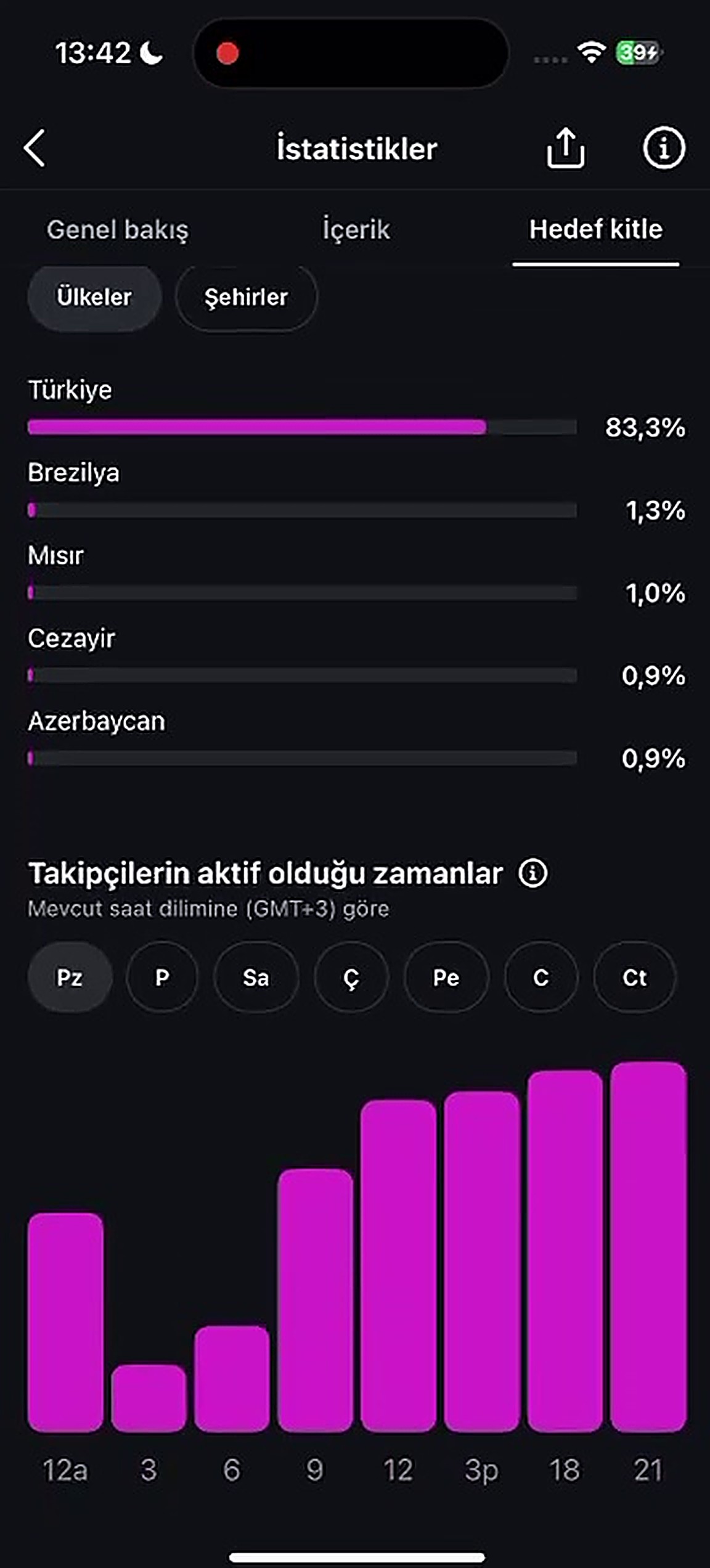 Image 8
 -
Most active times
The most active times chart at the bottom of the Audience page (if shown).
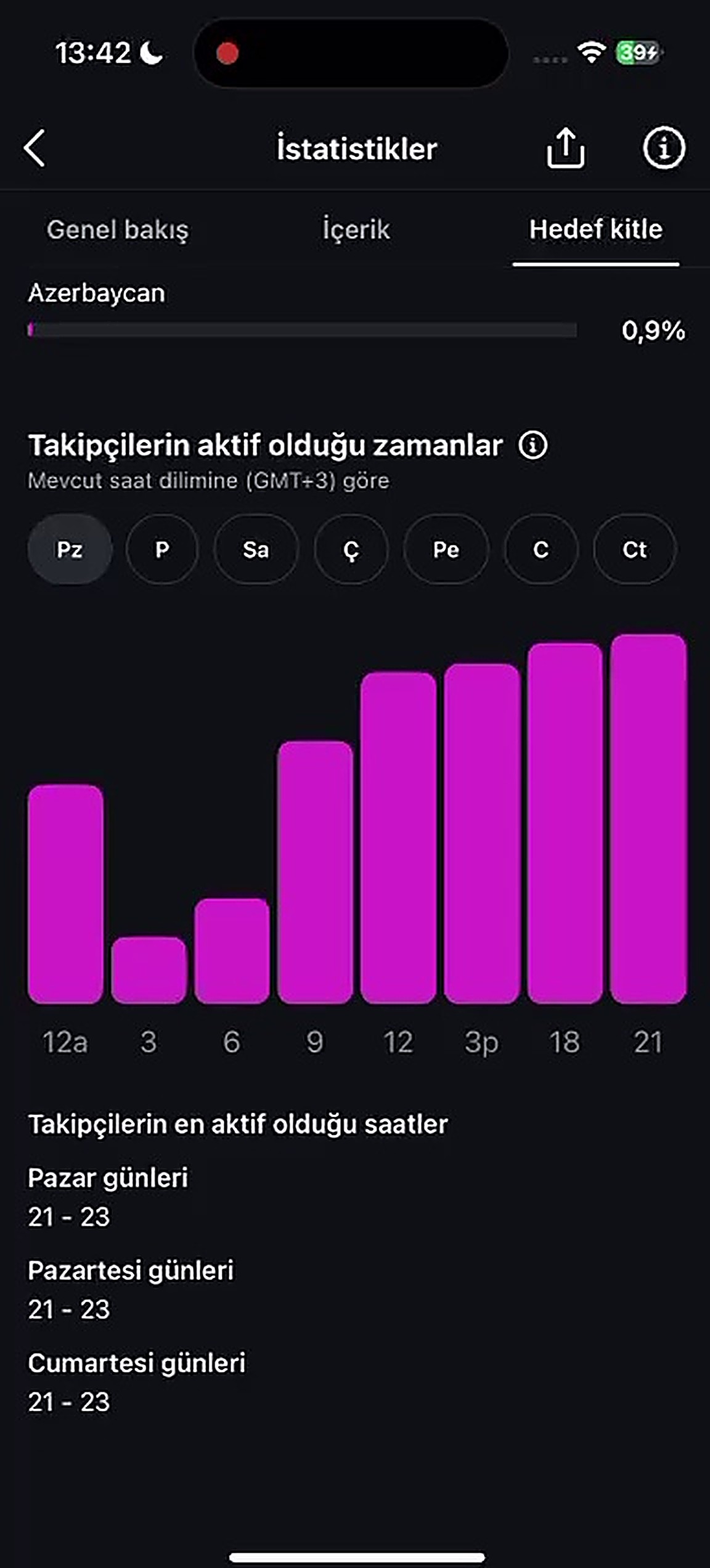 Image 9
Image 10 is up to you. The statistics of a standout reel, or any other screen you'd like to show.
We never ask for your password or account access. How your data is processed: Privacy Notice.